Track Product Prices with a Ready-Made Veilus Script
Checking prices by hand does not scale. You open ten tabs, copy numbers into a sheet, and by the time you finish, prices may already have moved. A quick script fixes the typing, but a bare script that fetches pages from one machine with one identity can get different answers from a normal visitor or lose its session, and then you are debugging the monitor instead of reading prices.
We published a ready-made price monitor in the public veilus/sdk repo. It is one script, one CSV and a three-step setup. This post walks through it.
How it works
The script runs inside a Veilus profile. Each run uses a real profile with its own fingerprint, proxy and cookies, so every page is opened the way a normal browser session would open it, and the same profile keeps the same identity from one run to the next.
For each row of a dataset, the script:
- opens the URL,
- reads the text of a CSS selector,
- turns it into a number,
- compares it with the number saved on the previous run.
At the end it prints one summary line, and optionally posts the changes to a webhook. A page whose price cannot be read does not stop the run: it is listed under failed, the other pages are still checked, and the run is marked as failed so you notice. Between pages it pauses for one second, so it does not hammer the site.
Set it up in three steps
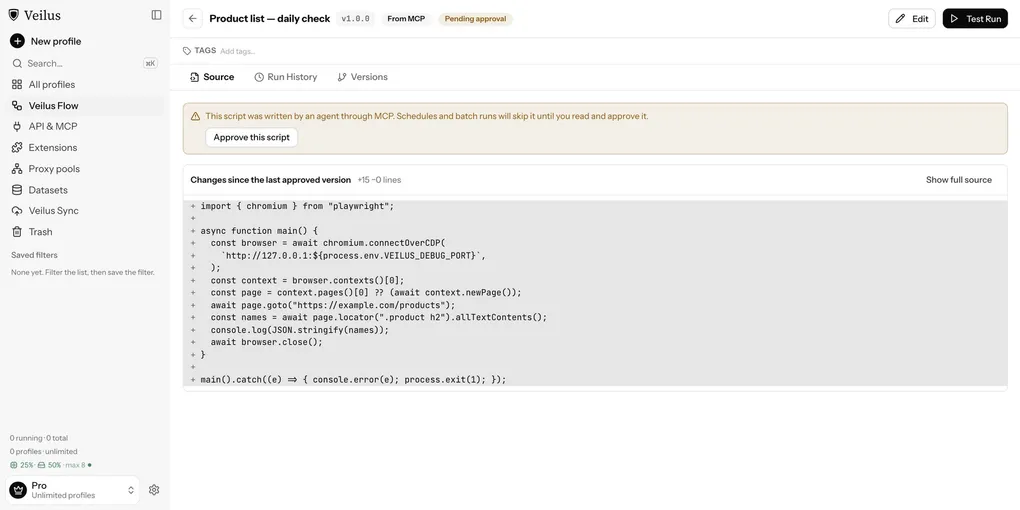
1. Paste and approve the script. In Veilus Flow, open Scripts, create a script and paste the contents of script.ts. Save it, then approve it. This step is easy to miss: a saved script only receives dataset rows after it is approved. When we ran it before approving it, the run stopped with a “no rows” error.
2. Import the dataset. The repo ships dataset.csv with two columns, URL and SELECTOR, and one row per product page:
URL,SELECTOR
https://books.toscrape.com/catalogue/a-light-in-the-attic_1000/index.html,.product_main .price_color
https://books.toscrape.com/catalogue/tipping-the-velvet_999/index.html,.product_main .price_color
Import it as a dataset and assign it to the profile. The SELECTOR column is optional: when it is empty, the script falls back to .price.
3. Run it, then schedule it. Run the script once to check that it works, then add a schedule, for example every 6 hours.
Read the result
Every run ends with one line starting with RESULT. When no price has changed since the last run, it looks like this:
RESULT {"checked":2,"changed":[]}The first run never reports changes, because there is nothing to compare with yet: it only records the prices.
To see the alert path, we edited the saved price of the first book to 0 and ran the script again. The monitor saw a difference and reported it:
RESULT {"checked":2,"changed":[{"url":"https://books.toscrape.com/catalogue/a-light-in-the-attic_1000/index.html","from":0,"to":51.77}]}Both outputs come from runs on a real Veilus profile on 25 October 2026. The 0 was our own edit to the state file, not a real price change on the site.
Alerts to a webhook
If you add a profile variable called WEBHOOK_URL with a webhook address that accepts JSON, the script sends a POST with a short text listing each changed URL with its old and new price. The text goes in both a text field, which Slack reads, and a content field, which Discord reads. It sends the alert before it saves the new prices, so if the webhook fails the run fails too, and the next run still sees the change. We have not exercised this path against a real webhook, so we are describing what the code does, not showing you a message.
Make it yours
- Your own pages. Put your product URLs in the
URLcolumn. - Where the price is. Right-click the price, choose Inspect, and copy a CSS selector into
SELECTOR. Each row can have its own. - Where the last prices are kept. By default in
~/veilus-solutions; set theOUT_DIRprofile variable to change it. State is kept per profile. - More than one identity. Assign the dataset to several profiles and each keeps its own saved prices, proxy and cookies.
One limit worth knowing: the price parser treats the last . or , as the decimal point, so a value like 1,299 is read as 1.299. If a site formats prices that way, the script comment explains how to adapt it.
Be a good citizen
Be polite about it.
- Read the site’s terms of service before you monitor it. Some forbid automated access.
- Check
robots.txtand respect it. - Go slow. Check a few times a day, not every minute, and keep the pause between pages.
- Monitor your own pages or pages you have the right to read, such as public product listings.
The example rows use books.toscrape.com, a sandbox built for scraping practice. Use it to test, then point the script at pages you are allowed to monitor.
Links
- Script, dataset and README: github.com/veilus/sdk/tree/main/solutions/price-monitor
- Step-by-step recipe in the docs: docs.veilus.io/recipes/price-monitor